Traffic Mirrors🔗
Traffic Mirror is a network monitoring tool within Verity that copies traffic from a source port to a destination port. Administrators then connect a PC equipped with Wireshark or other monitoring device to the destination port to analyze the copied traffic.
The Report → Traffic Mirrors window provides a Report of all Traffic Mirrors.
Creating a Traffic Mirror🔗
Monitoring ACL restrictions🔗
When a Traffic Mirror references a Monitoring ACL, the mirror is limited to the Service VLAN traffic selected by that ACL.
The following restrictions apply:
- All interfaces is available as a source only when a Monitoring ACL is selected.
- Only one enabled Traffic Mirror row on the same switch can use All interfaces as the source.
- Outbound Traffic is not supported with a Monitoring ACL. When a Monitoring ACL is selected, Outbound Traffic is disabled and Inbound Traffic must remain enabled.
If no Monitoring ACL is selected, choose a specific source port or LAG instead of All interfaces.
- Navigate to Topology - Network View
- Double-click the Traffic Mirrors tile on the switch. (
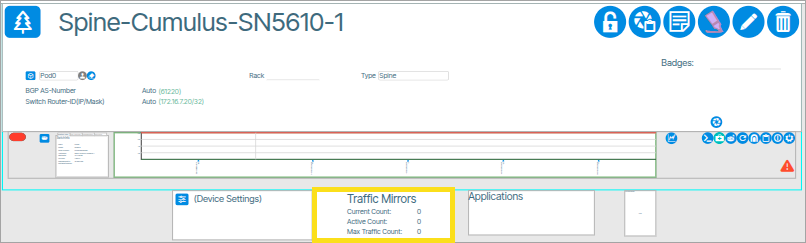 ) This opens the Traffic Mirror window.
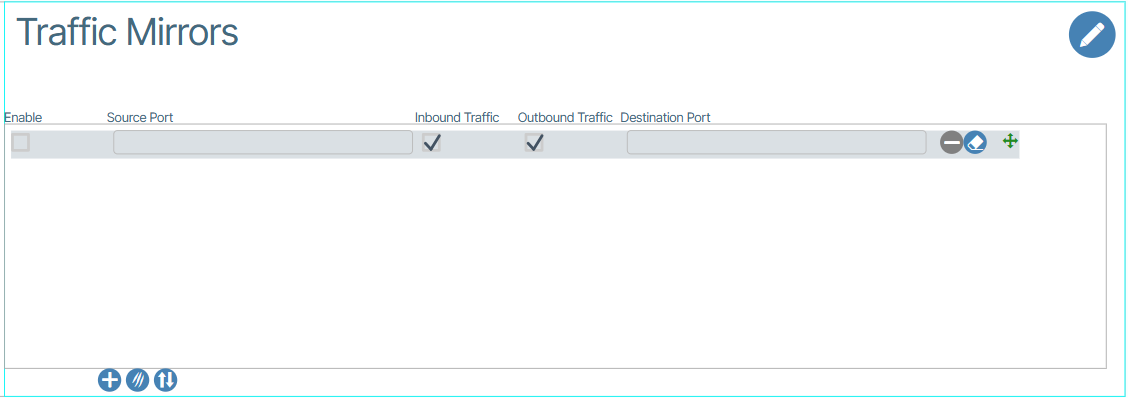
 - Click the Add row to this Switchpoint button (
 ) followed by entering the Source and Destination switch ports, selecting ingress and/or egress traffic, then enable row(s).
Port Traffic Mirroring Indicators🔗
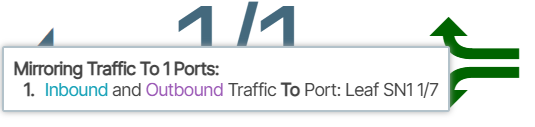
These indicators tell users if a port is used in a traffic mirroring configuration.

Hovering over the indicator provides more information.