Creating and Configuring Provisioning Objects🔗
Provisioning objects are created using special configuration forms to define and apply settings. To create these objects, follow the steps below.
This is a general example that uses Templates and Eth-Port-Profiles for demonstration. Although the general creation and configuration process is the same, different provisioning objects will have their own unique parameters.
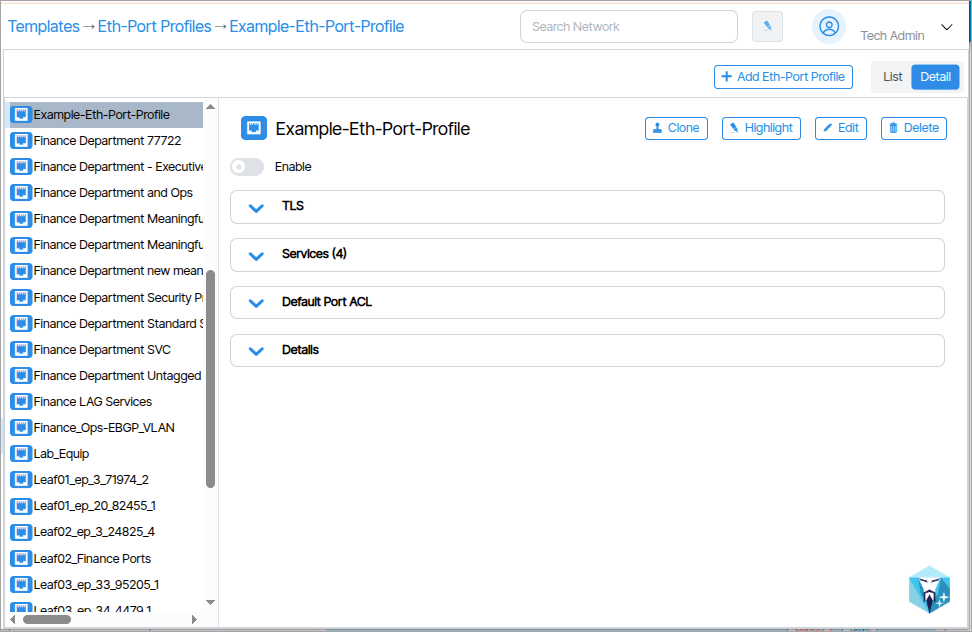
-
Click the link of the provisioning object you want to create. In this example
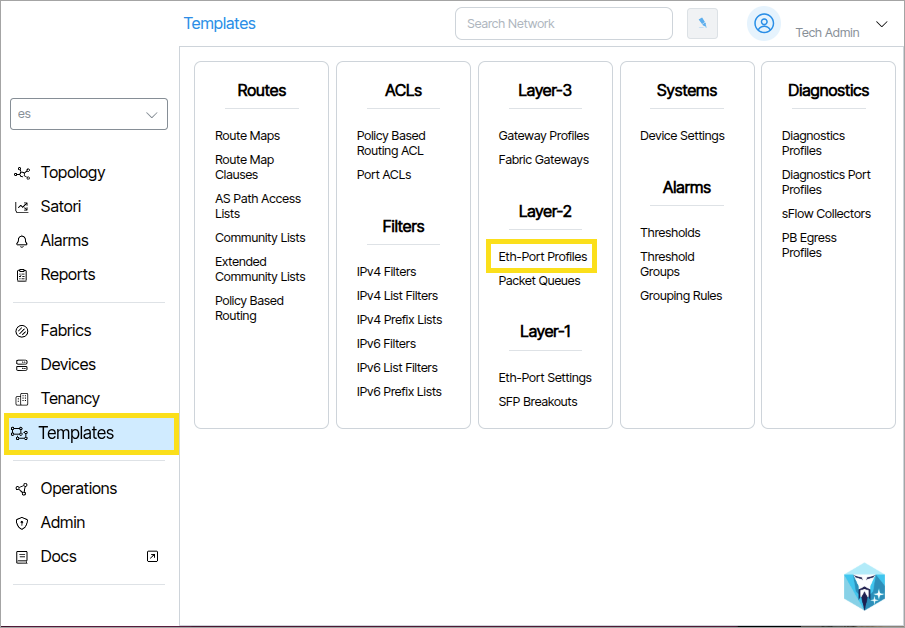 , Eth-Port-Profile is the provisioning object and is selected from Templates.
 -
In the window that opens, click the Add Eth-Port Profile button. Depending on your selection, this button will contain text specific to the provisioning object such as Add Service or Add Threshold (
 ).
). - In the field that appears, name the object and click the Add button (
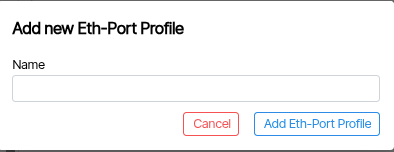 ).
). - Fill in the parameters and settings of the object (
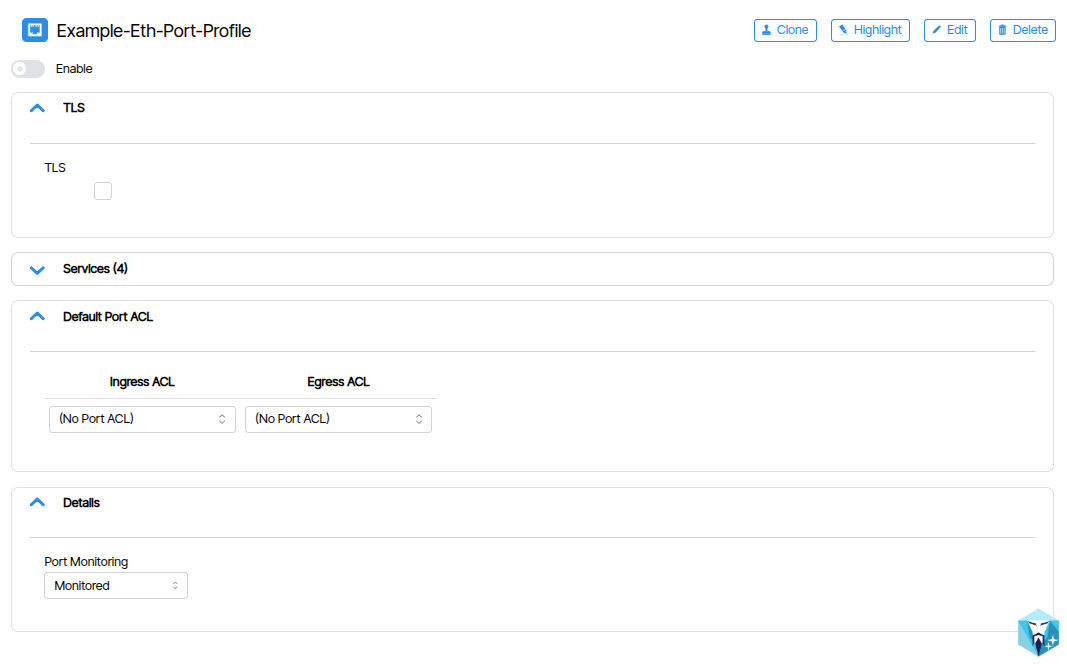 ). Fields are grouped together via an accordion interface. You can toggle the accordion open and closed by clicking its heading (
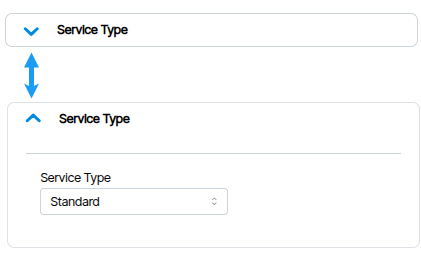 ).
). - The Enable switch is used to enable or disable the object (
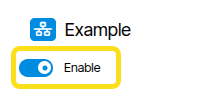 ).
).
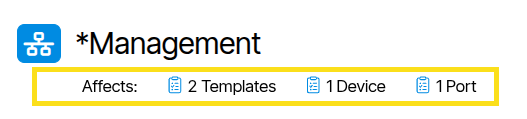
Affects:🔗
Affects: Indicates whether other provisioning objects in the system are linked to this object.
Enable / Disable🔗
Objects can be enabled or disabled by toggling the Enable button.
List / Detail🔗
The window provides a visual choice between Detail and List view.
Edit🔗
To edit settings, click the Edit button.
Delete🔗
To delete the current object and all its settings, click the Delete button.
Clone🔗
To clone (copy) an object, click the Clone button. In the field that appears, type a new name for the clone and click Create. The name must be unique.