PODs🔗
In a spine-leaf architecture a POD is a grouping of leaf and spine switches. This allows for added capacity by deploying additional PODs without redesigning the entire network.
POD Reports🔗
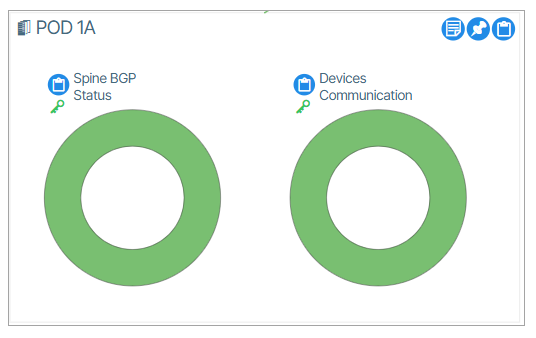
The Reports window provides a Report of all PODS via Reports → PODs
How to Create a POD🔗
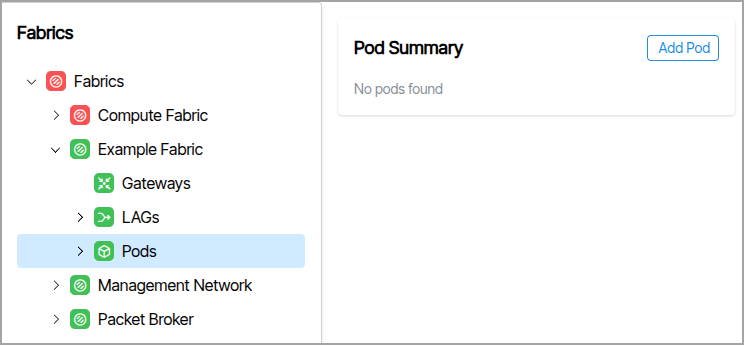
- From the Main Navigation Menu select Fabrics and choose your Fabric.
- Select the Pods icon.
- In the upper right corner of the page, click Add Pod.
- Type a name and click Add Pod.
Inter-Pod Gateways🔗
This feature enables network gateway communication between device pairs in two separate PODS.
To use this feature, the PODS must not be connected by a Super Spine.
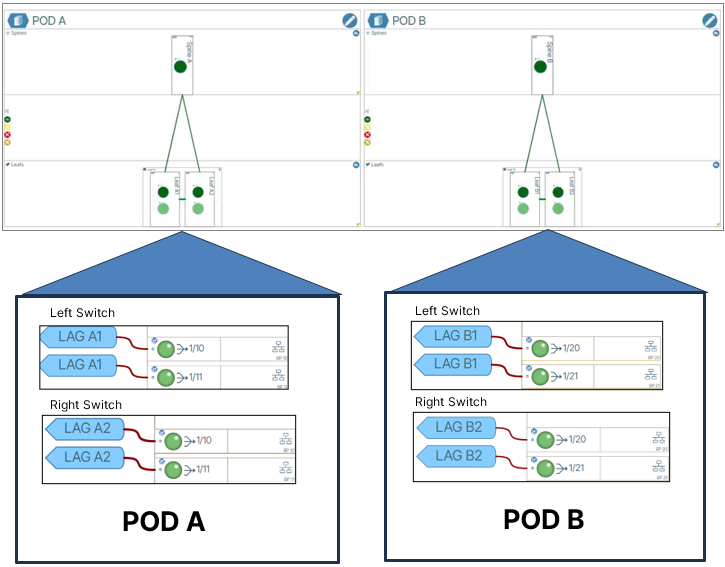
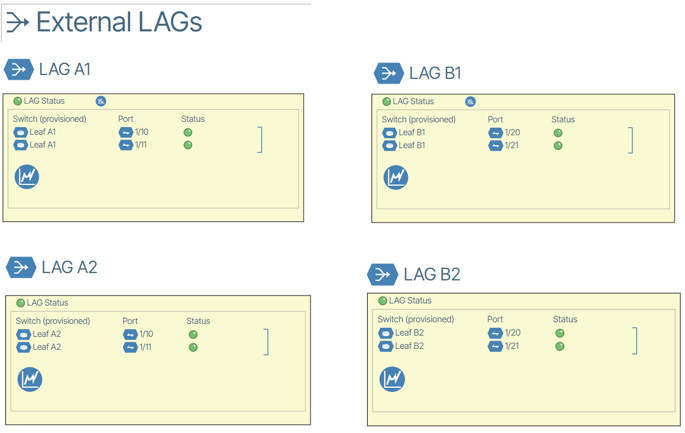
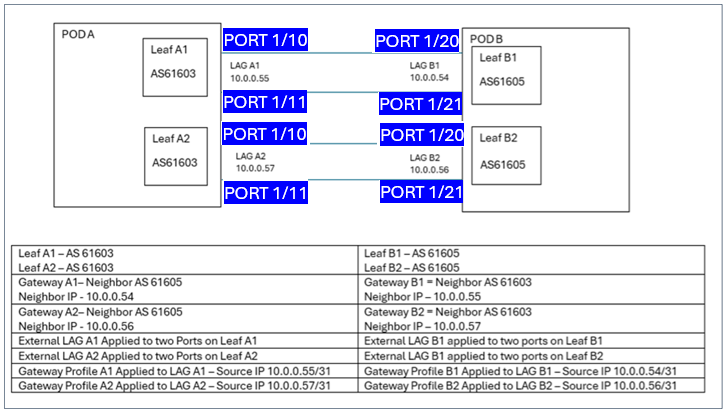
The image below shows a basic system containing two independent PODS with each containing a device pair. The PODS are devoid of a Super Spine connecting them. It is assumed that the requisite physical connections are made (an example would be a Leaf Pair in each POD, with each leaf connected by two wires, totaling four wires and involving eight ports).
Object Configuration Description🔗
The chart below presents an example configuration that includes 2 PODS, 4 switches and 8 switch ports. Object names, IP addresses and Autonomous System numbers will differ for your configuration.
Port numbers are presented in a blue background and are specific to the example above.
Create a Gateway Profile🔗
- Go to Templates / Gateway Profiles.
- Create the needed Gateway Profiles. (layer-3-templates.md/#gateway-profiles)
Adding a Gateway Profile to a LAG🔗
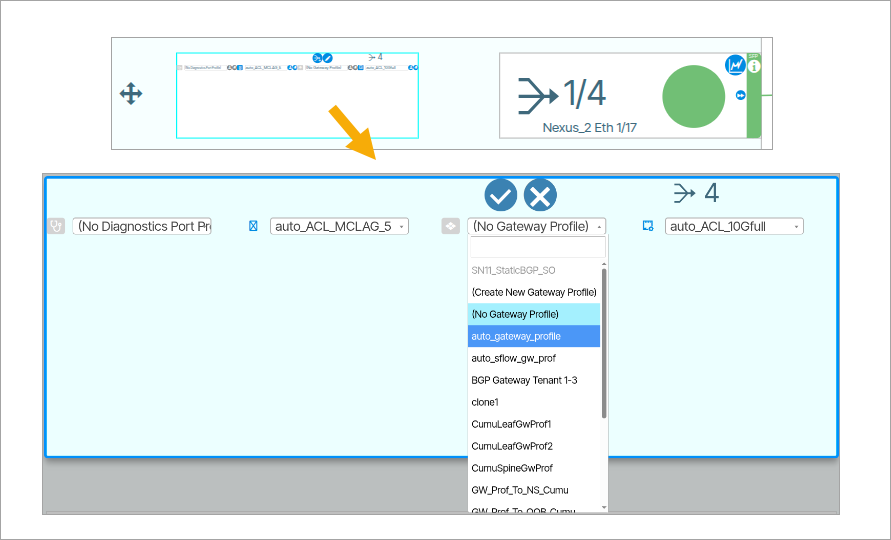
Adding a gateway profile to a LAG is needed to create the connection. To add a Gateway Profile to a LAG, set the Gateway Profile in the Gateway Profile for Eth field on the device port.