Spine Plane Architecture🔗
Spine plane architecture enables large data centers to grow by dramatically increasing available switch ports. This form of architecture is built specifically for heavy server-to-server traffic patterns found in cloud computing, AI/ML applications, and virtualized systems where most data flows horizontally between servers rather than in and out of the data center.
Spine Plane Integration🔗
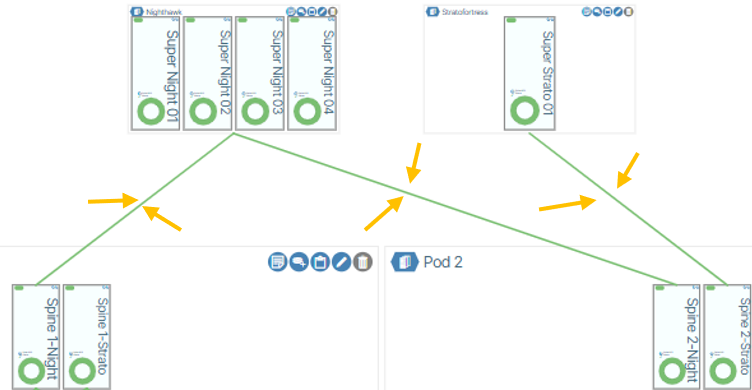
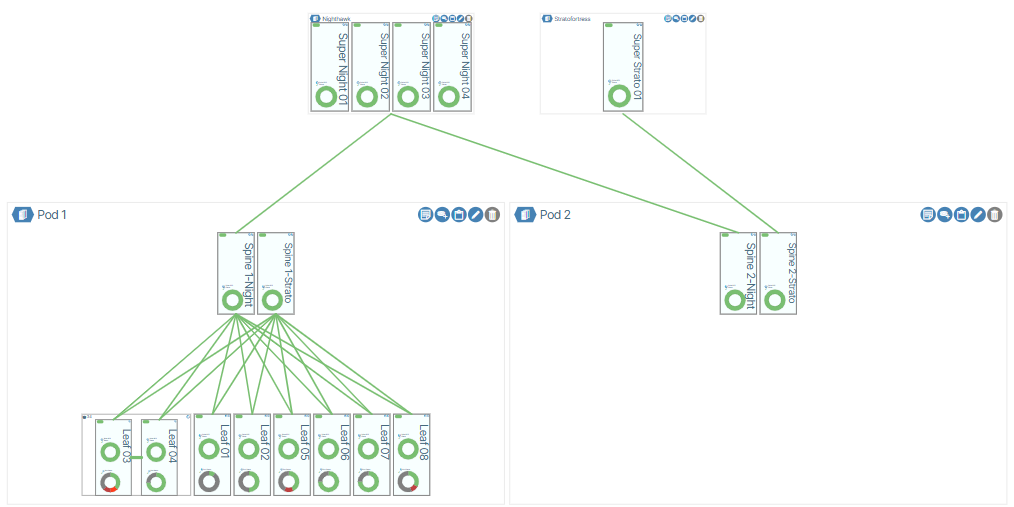
In Verity, switch devices are organized according to their role in the system. Spine and leaf devices are grouped into collections called Pods, while Superspines are grouped into collections called Spine Planes. A Spine Plane integrates into the network architecture by connecting its containing Superspines to a spine switch within a POD, forming a dedicated inter-layer fabric. Each POD contains a single spine switch that establishes physical links to all Superspines in its assigned Spine Plane. This design creates a clear hierarchy, with the Spine Plane layer positioned above the POD layer to enable scalable, centralized interconnection between PODs.
Summary🔗
- PODs are composed of Spine and Leaf switches
- Spine Planes are composed of Superspines
- One Spine per POD connects upward to all Superspines in its assigned Spine Plane
- Multiple PODs can connect to the same Spine Plane, enabling inter-POD communication
Creating a Spine Plane🔗
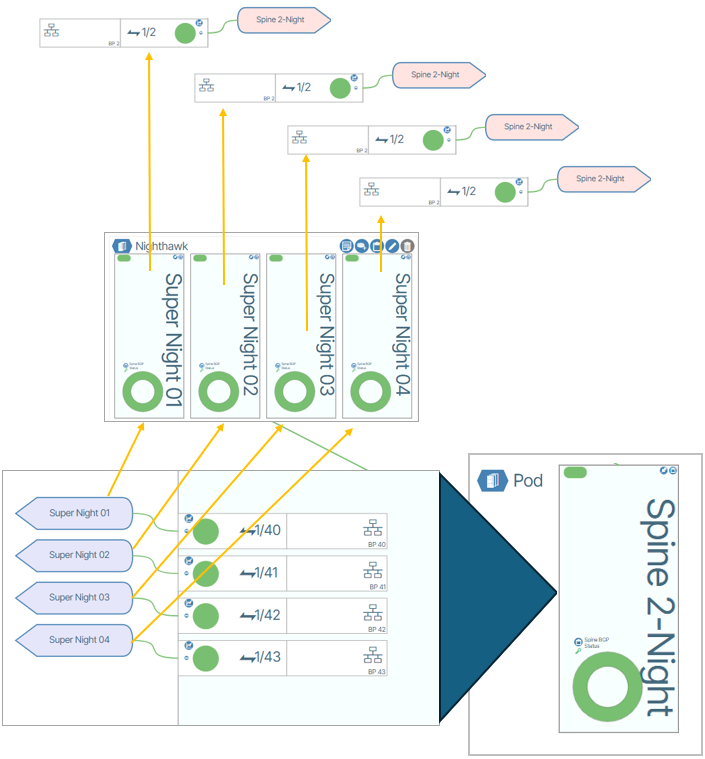
Before creating a Spine Plane, the Superspine(s) and Spine hardware must be physically connected. The image below is a graphical representation of these physical connections.
Create a Spine Plane from Fabrics🔗
- Click Fabrics in the main navigation panel.
- Select Fabrics in the fabrics tree, then click Add Fabric.
- Select Multiplane from the Fabric Type menu.
- Enter a name for the fabric.
- Configure the Multiplane underlay settings.
- Select the newly created fabric.
- Under Features, enable Allow All Underlay Connections to permit Spine-Spine connections.
- Under Spine Planes, click Add Spine Plane.
- Enter a name for the Spine Plane.
- Under the new Spine Plane, click Add Superspine to add a Superspine.
When the configuration is complete, Verity will display virtual cables between the Spine Plane(s) and Spine(s) representing the relationship between the devices.