AI Ops🔗
Installation
For information on installing, disabling or updating AI Ops, see the section on AI Service System Applications.
AI Ops is an AI-powered messaging assistant designed to help network professionals monitor and configure their network architecture. Through its intuitive interface, the assistant enables administrators to quickly diagnose problems and identify solutions.
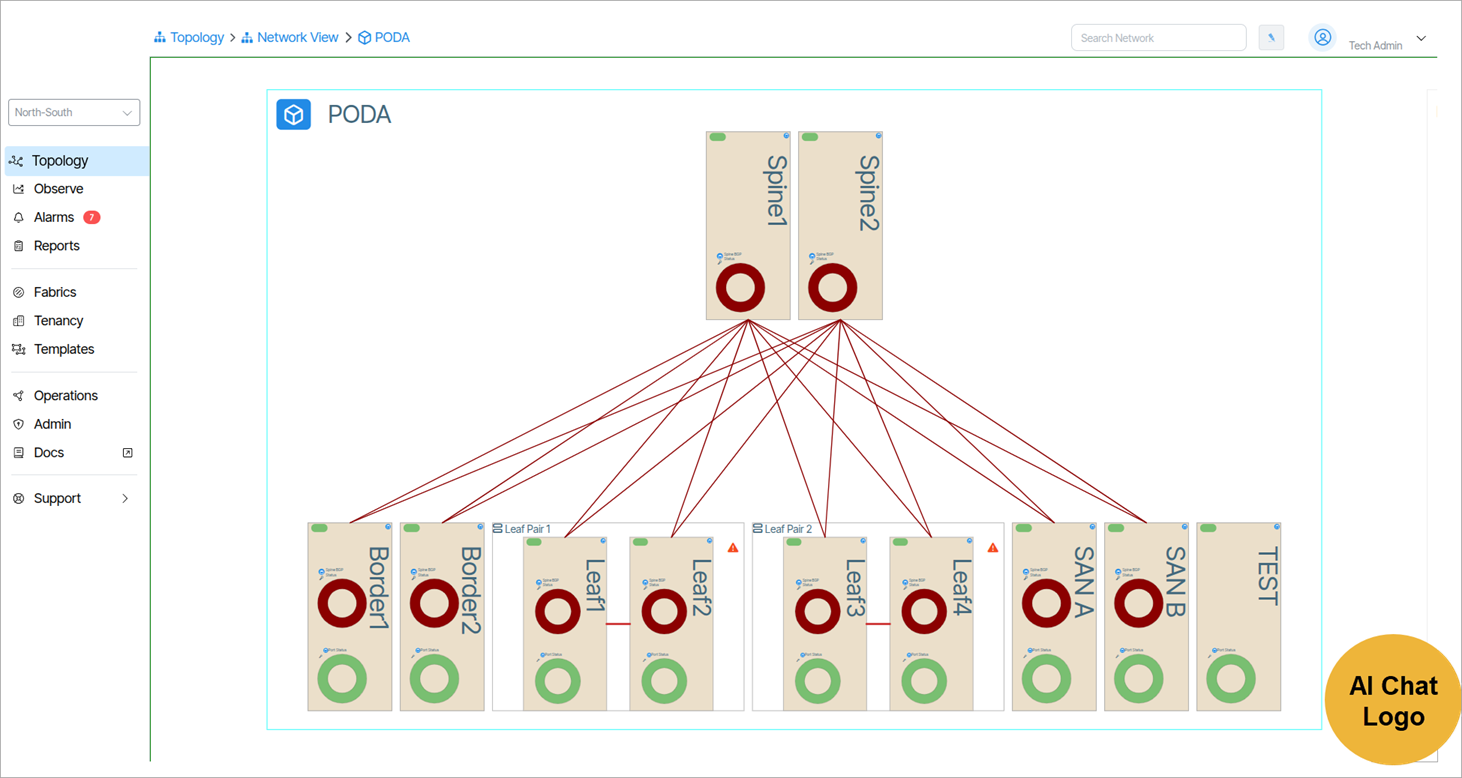
Getting Started with AI Ops🔗
Click the AI Chat Logo button to open AI Ops.
Chat Message Interface🔗
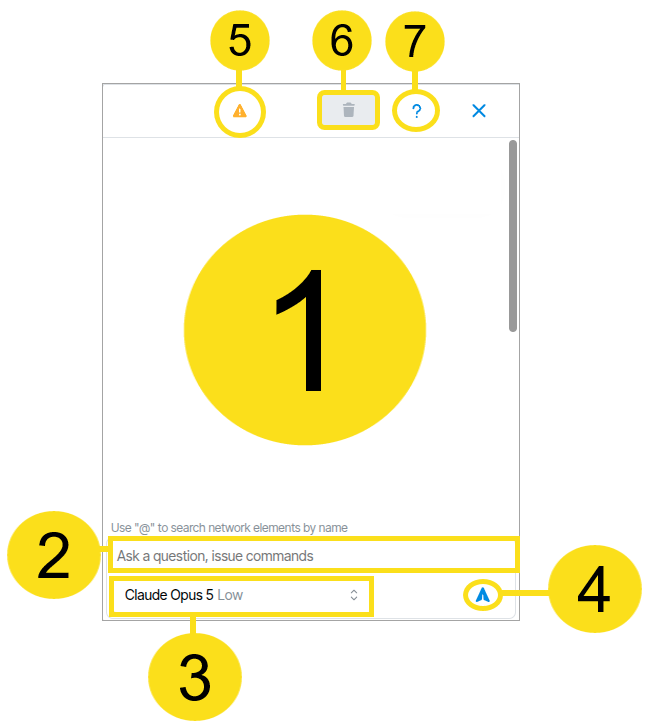
The chat message interface is where users interact with AI Ops.
- AI Ops Response Field
- User Submission Prompt Field
- LLM Selection
- User Submission Button
- Name Collision Warnings
- Clear Conversation and Context button
- Help Button
LLM Model Selection🔗
Note
Official LLM support is limited to Anthropic, TogetherAI and OpenAI models.
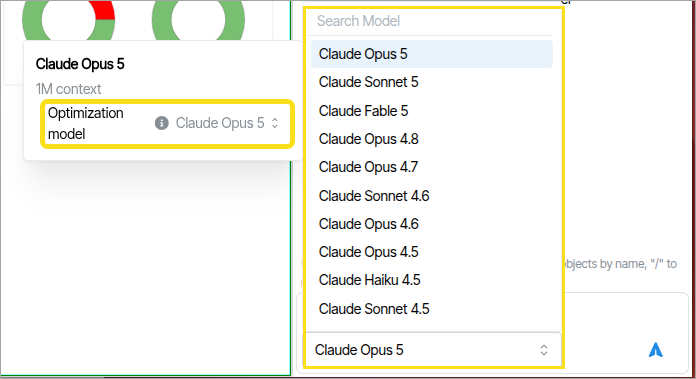
The Model selection is listed as a dropdown menu at the bottom of the chat window.
When selecting an LLM, an additional Optimization Model may be available.
Prompting🔗
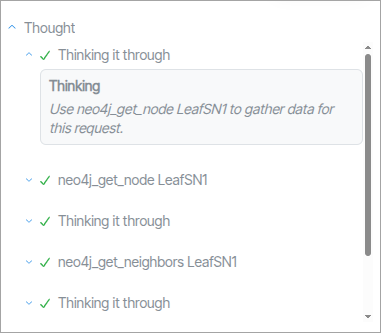
When submitting prompts, the system displays a thinking indicator.

When a prompt is complete, a summary of the process is expressed by an entry titled Thought. This entry is composed of a list of actions taken to create the prompt response. The actions can be inspected by clicking on them.
Response Statistics🔗
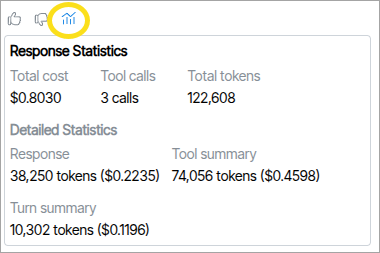
Clicking the Response Statistics button at the bottom of a reply opens a window displaying statistics about the prompt response, including token count, number of tool calls, and cost. Response statistics are viewable by all users. Additional Detailed Statistics are available only to administrators with a permission level of Admin Tech.
Feedback
Thumbs Up/Thumbs Down 
Users of AI Ops can help guide more accurate replies by clicking the thumbs-up or thumbs-down feedback icons after receiving a response.
Fuzzy Matching🔗
AI Ops is designed to anticipate user intent when object names are queried. Since object names may occasionally differ slightly from what users type, AI Ops employs a technique known as fuzzy matching to interpret and correct user input. For example, if a user searches for an object named "Spine-1" but enters "Spine 1" (omitting the hyphen), AI Ops will attempt to identify and match the intended object. AI Ops notifies the user of the change by posting the word "corrected" beneath the query. 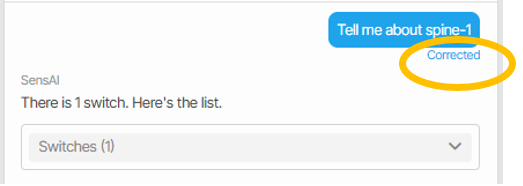
If the current query results in multiple potential matches—creating naming collisions—fuzzy matching is temporarily disabled. In such cases, AI Ops prompts the user to clarify their query.
Help🔗
AI Ops provides a useful help menu with examples of its capabilities. To view Help, click the question mark icon in the upper right corner of the AI Ops chat window.
Note
AI Ops scope is limited to specific objects and tasks. This documentation provides a general overview of its capabilities. For a detailed list of applicable objects and actions please view the Help option in the application.
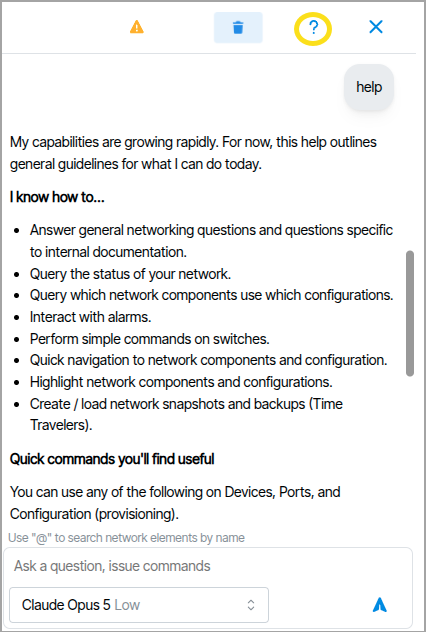
Commands🔗
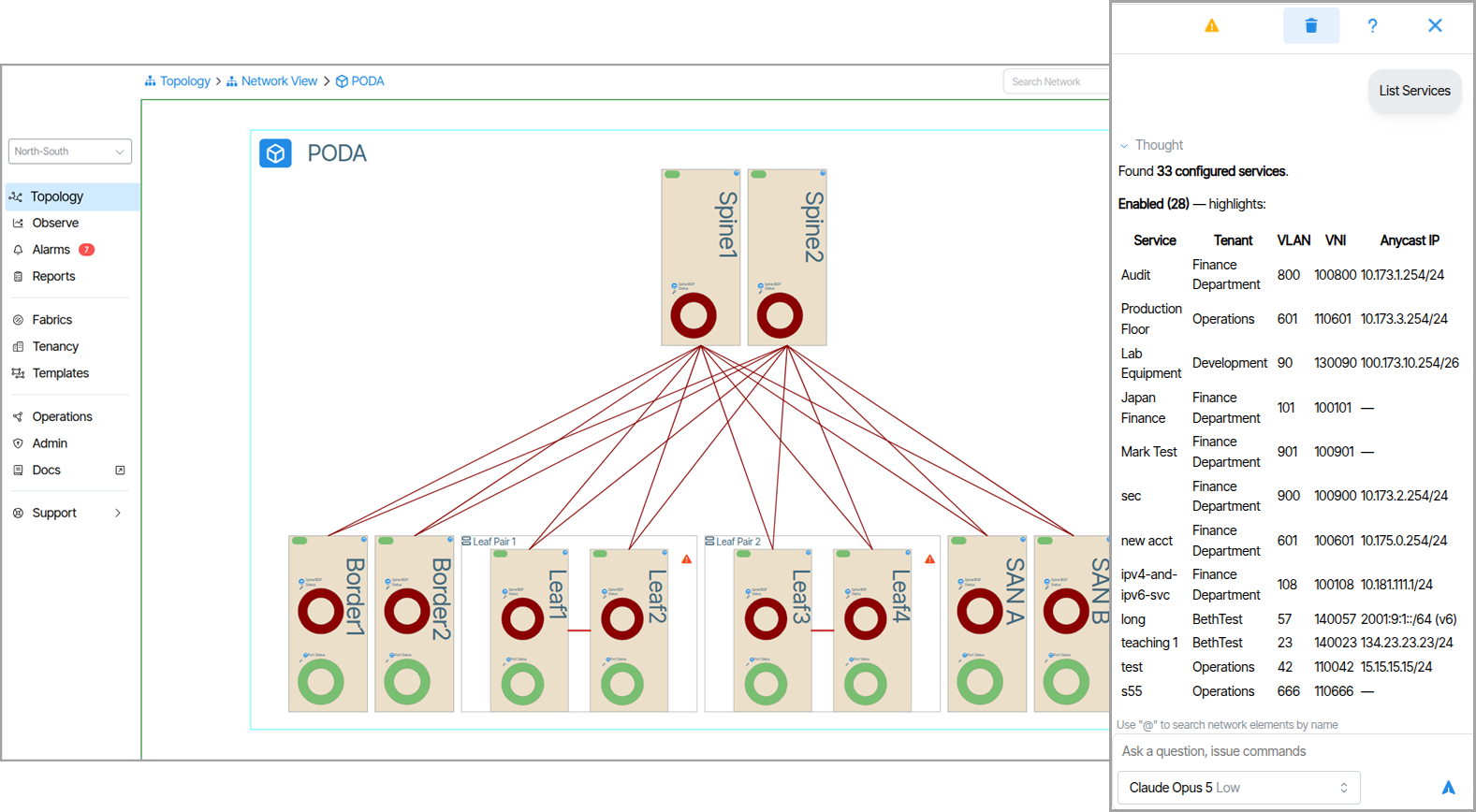
AI Ops responds to user submitted prompts by displaying data in various formats and visual styles. In addition to displaying data, AI Ops also responds to user queries by executing site-wide commands that impact overall system operations. A full list of commands is available in the help section.
Displaying Objects🔗
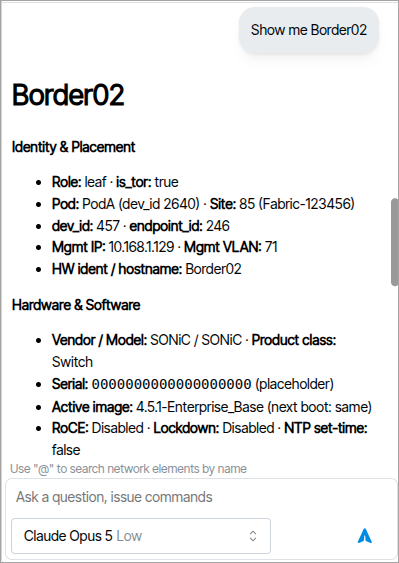
AI Ops displays objects that match the query scope.
The query in the example below returns Border02 device information.
Verity Documentation Reference🔗
When prompting AI Ops, material from the official documentation may be presented and/or requested by the user. This information is usually presented in aggregate form from different sections of the documentation, with individual reference links to the source material included. Responses may include documentation content as part of a larger reply.
Instant Search🔗
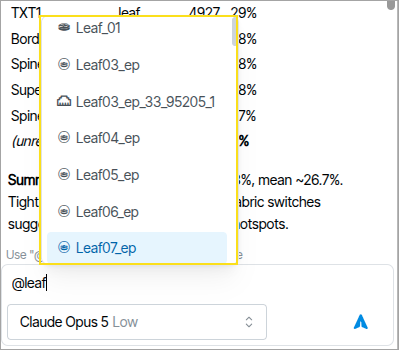
The instant search allows users to quickly find objects by name. To use this feature, preface the search with the @ symbol and type the name of the object or device you are searching for. Use the up and down arrows to choose from the presented items, and press Tab to auto-populate the selection in the submission field.
Instant Search for Metrics and Objects🔗
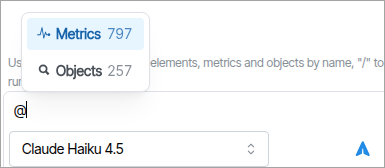
When typing @, two default categories appear: Metrics and Objects. Selecting one narrows your query to that descriptor.
Pre-Created Prompt Filters🔗
In the Prompt field, typing a forward slash presents a list of useful pre-created prompt filters.
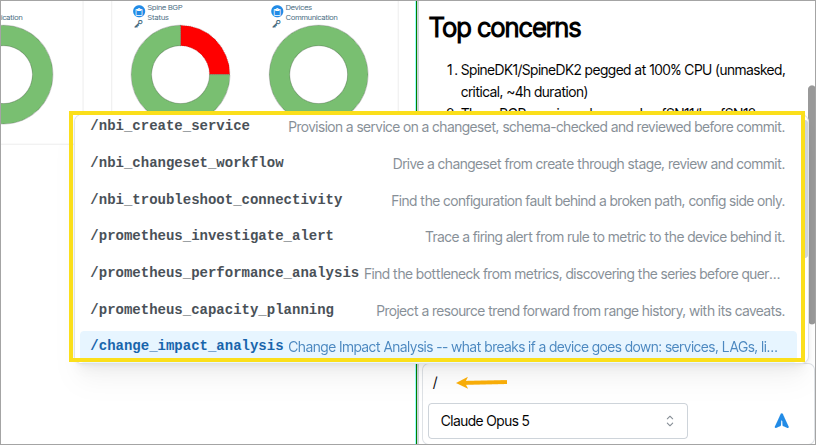
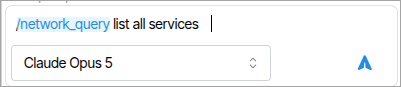
You use these to preface your prompt and relegate it to specific behaviors.
Naming Collision Warnings🔗
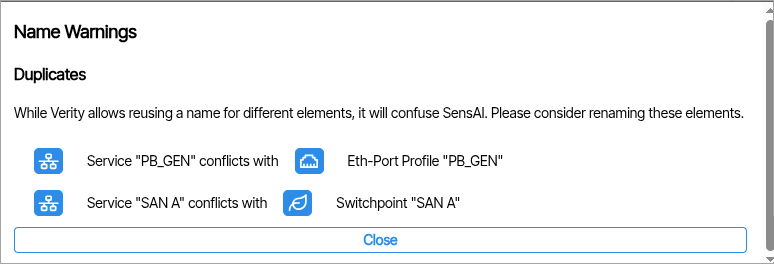
Provisioning objects with duplicate names (using the same name more than once), name collisions (names that are too similar), or common words (such as naming objects with generic terms like "a") will trigger the name collision notification icon to display yellow.

Clicking the icon opens a notification window that describes the naming issue.