Link Aggregation (LAGs)🔗
Link aggregation is a popular method for grouping multiple ethernet connections into a single logical link. Traffic across this link is automatically load balanced across the grouped (bonded) links. LAGs can extend from single leaf switches or can be configured across a pair of leaf switches. When a leaf pair is created and LAGs are assigned to ports on each switch, the LAG is considered an "MLAG". MLAG, or Multi-chassis Link Aggregation, is a networking technology that aggregates multiple physical ports across two or more switches into a single logical link, thereby providing increased bandwidth, redundancy, and resilience. This allows servers and other network devices to connect to different switches and appear as if they are connected to a single switch, improving network performance and fault tolerance.
Automation
The interconnect between Leaf Pairs (Fabric Crosslink LAG shown in diagram below) is automatically recognized and configured by Verity. This section explains how to create external LAG connections to the workload.
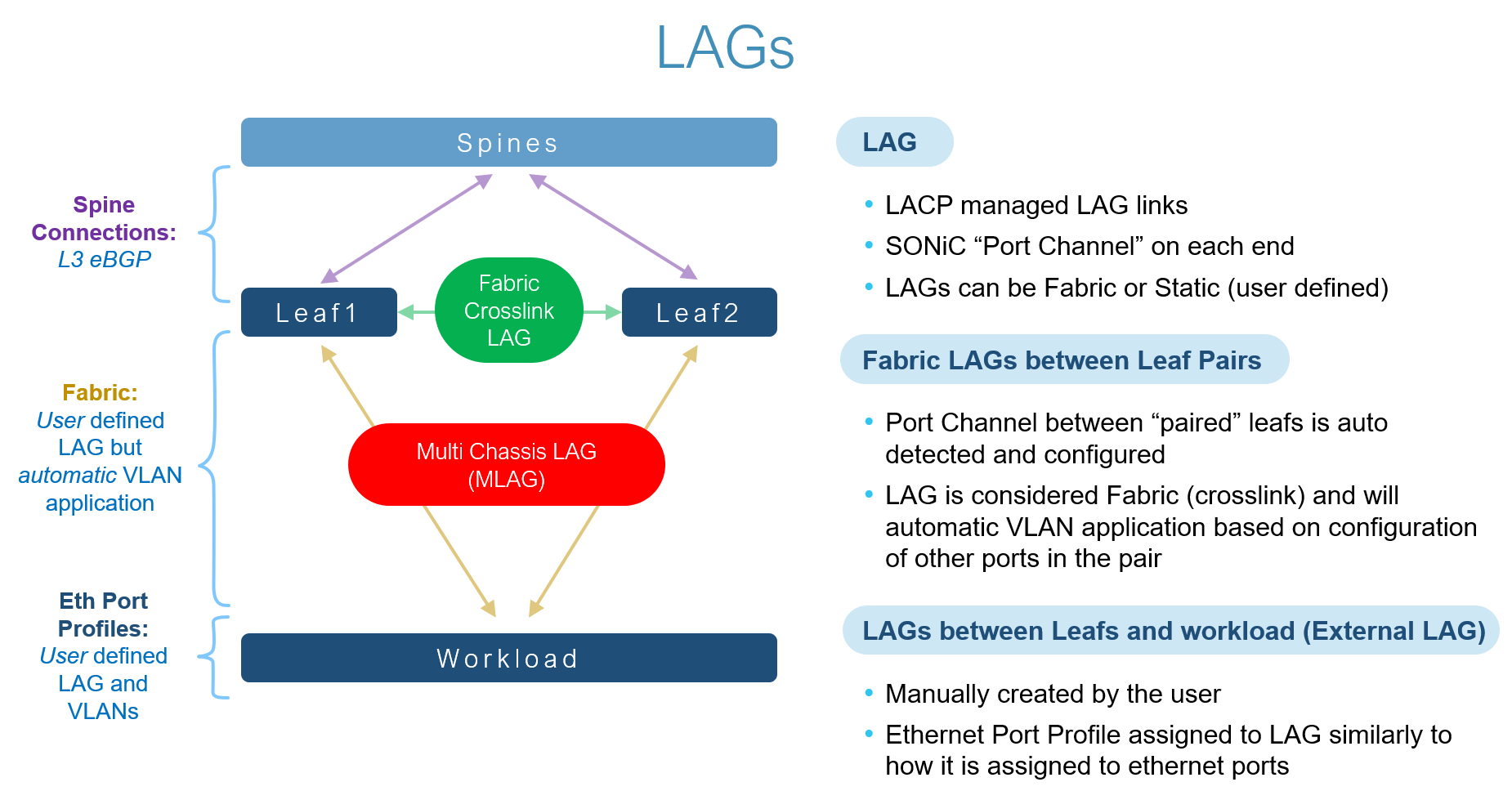
Link Aggregation Process🔗
Although there are several ways of completing the process, an easy to understand method requires these steps:
- Identify the composition of the LAG, including the leaf pairs and ports you intend to use in its configuration. (Assuming you are implementing MLAG)
- Create the external LAG object, name it, and assign it to the port(s).
- Select the Tenant services and create an Eth Port profile and assign it to the external LAG.

The following example below shows how to create an external LAG relationship between two leaf ports. These actions can be used to establish different LAG configurations depending on your needs, such as aggregating multiple ports on a single leaf switch to boost endpoint bandwidth.
How to Create a Switch Pair From Fabrics🔗
-
From the Main Navigation Menu select Fabrics.
-
Determine the target devices. If the target devices do not yet exist, create them before creating a switch pair.

-
Select the containing network Fabric.
- In the upper right of the page, click Manage Pairs.
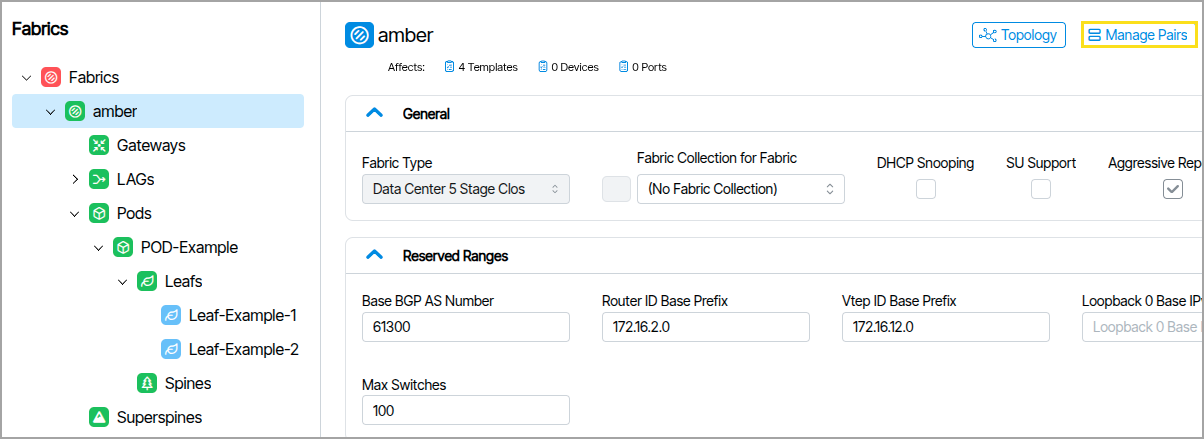
- Enter a name in the Name field, then select your devices under the Switchpoint fields.
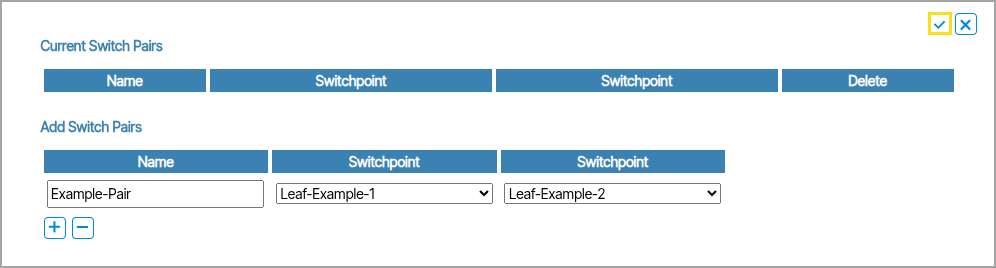
- Make physical connection. The ports must be configured identically and operate at the same speed.
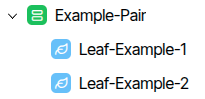
When complete, the Fabrics tree displays the devices as a related pair with the Switch Pair icon.
How to Create a LAG From Fabrics🔗
LAGs are categorized as either External or Fabric. The system auto-detects Fabric LAGs, while External LAGs can be added manually.
- From the Main Navigation Menu select Fabrics.
- Expand your Fabric, and go to LAGs
- Click External, and then click Add LAG button
- Give it a Name and Click Add LAG
- Select your new LAG
- Update/Verify the settings, set an Eth-Port Profile for the LAG
- Save the Settings.
- Apply the LAG to the interfaces on the Leaf switch you want to use this LAG.
Assign the LAG to Port🔗
- Select a port on your chosen device and zoom in on it. Open its parameters by clicking the space to the left of the dividing line.
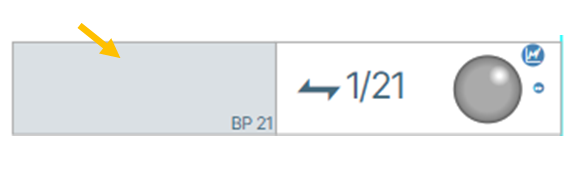
- Click the Edit (
 ) button. On the Eth-Port-Profile or LAG for Eth Port drop-down menu, select the LAG
(
) button. On the Eth-Port-Profile or LAG for Eth Port drop-down menu, select the LAG
(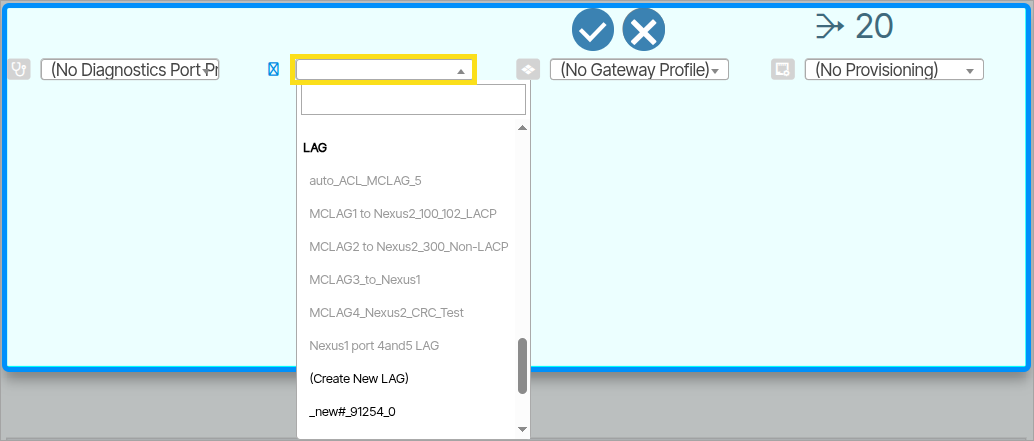 ).
). - Click the Save button (
 ) to save your work.
Assign LAG to Second Switch Port🔗
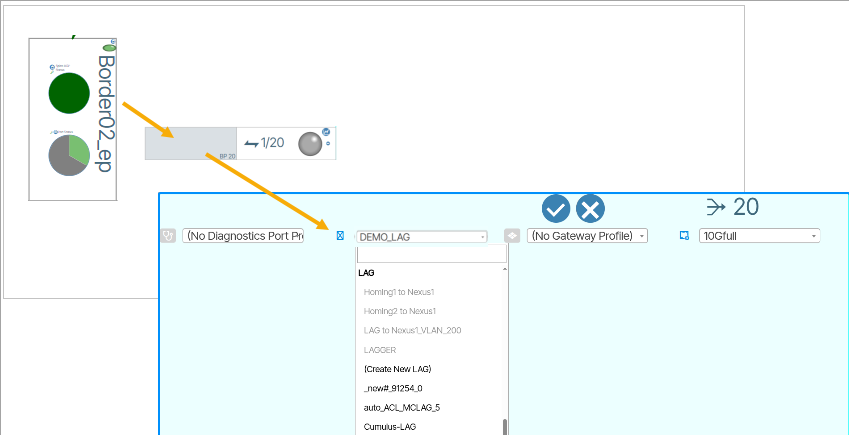
- On the second chosen switch in the pair select the desired port and open the Provision Port settings. Enable editing by clicking the editing button.
- In the Eth-Port-Profile or LAG for Eth Port form field set the name of the LAG you previously created.
- Click the Save button to save your work.
Validate LAG Status Display🔗
- As the system creates the channel groups and communicates over LACP, there will be a delay in the system for up to 5 minutes, after which the status display will turn green
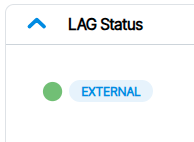 .
. - If you encounter problems and the icon remains red or yellow, hovering over the status icon provides more information.
Assign Services to the LAG via “Add LAG” Button🔗
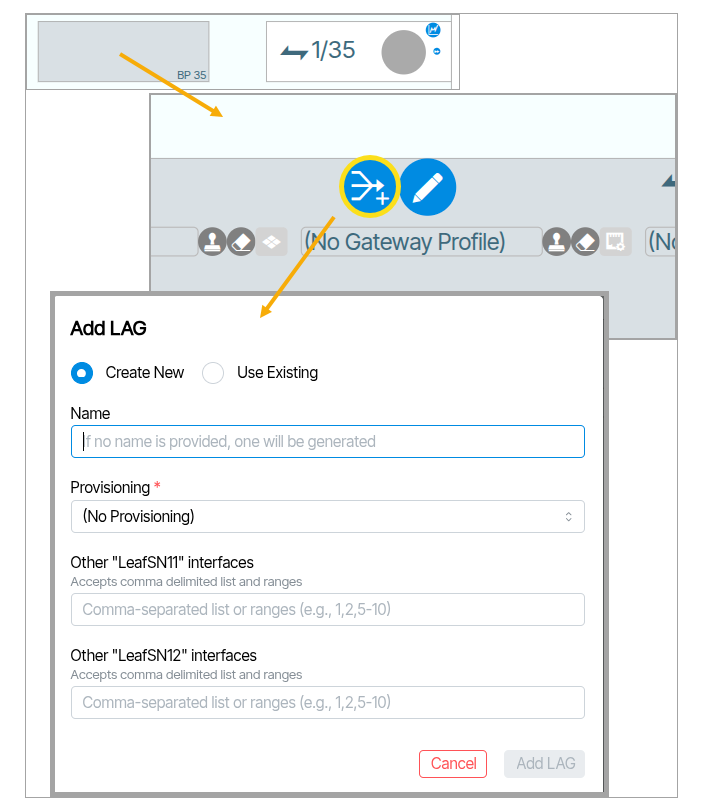
- Zoom into the settings of a port you want to assign the LAG to .
- Click the Add LAG button.
- Fill out the form with the following LAG settings:
| Setting | Description |
|---|---|
| Create New / Use Existing | Determines if you are creating a LAG or using an existing LAG. If you choose Use Existing, the form field presents you with a list of existing LAGs to choose from. |
| Name | Sets the name of the LAG. |
| Provisioning | The Eth Port Profile (the service(s)) you assign to the LAG. |
| Other 1 | The port number(s) (separated by commas if more than one) of the listed switch to assign the LAG to. |
| Other 2 | The port number(s) (separated by commas if more than one) of the listed switch to assign the LAG to. |
Provision Channel Group Endpoints and Set Physical Connections🔗
The next step is to provision channel endpoints. This step is outside the scope of these instructions. The last step in the process is to physically connect the devices.
ESI Multihoming🔗
A ESI Multihoming is a networking technology that allows multiple switches (typically leaf switches in a data center network) to form a single logical link aggregation group (LAG). Its configuration closely resembles that of a switch-pair MLAG, with the key distinction being the inclusion of up to four switches, significantly enhancing network redundancy and scalability. The number of ports that can be assigned a Multihoming ESI group is indeterminate. The number of switch devices is limited to four.
ESI vs MLAG
LAGS assigned to two or more non-paired Leaf Switches use ESI Multihoming protocol instead of proprietary MLAG implementations. Multihoming is a feature that is automatically enabled, requiring no setup from the customer.
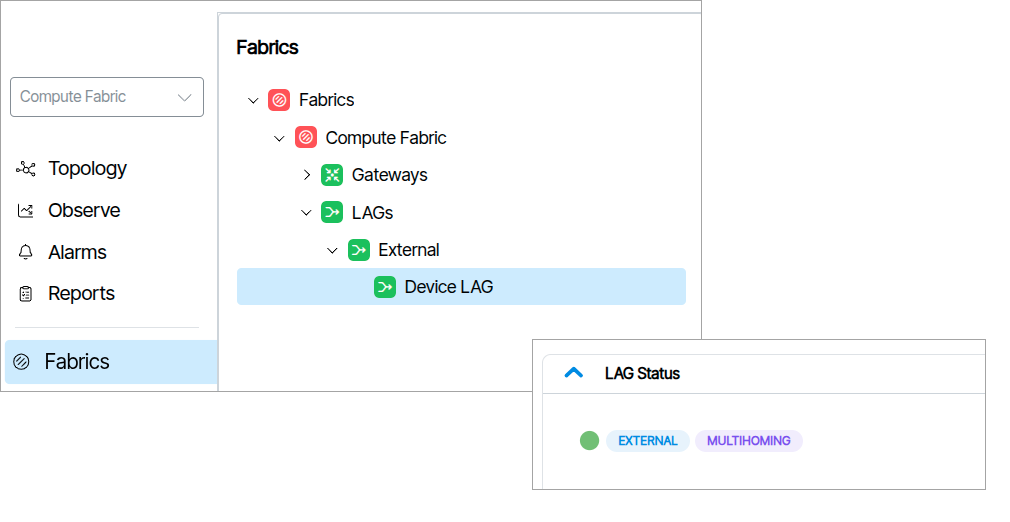
If a LAG is using ESI Multihoming, it will display text that says Multihoming.
Relationship to Leaf Pairs🔗
The multihoming feature is implicitly disabled on all leaf switches configured as leaf-pairs. Any leaf with multihoming in use cannot be made part of a leaf pair until the multihoming configuration is removed. This prevents any conflict between the MLAG functionality on leaf pairs and the multihoming functionality.
Conflict Resolution🔗
When attempting to pair a Multihoming switch, a conflict arises, and an error message is displayed that gives you the choice to disconnect the Multihoming connection(s).