Network Time Traveler🔗
Network Time Traveler is a tool to create and restore the intended configured state of the network. Time Traveler exercises version control on the configured objects in Verity. Verity derives device configurations from these objects, therefore the system can recalculate the entire network configuration when administrators use the Time Traveler function. Verity does not backup the actual device configurations.
Manually Create Backup🔗
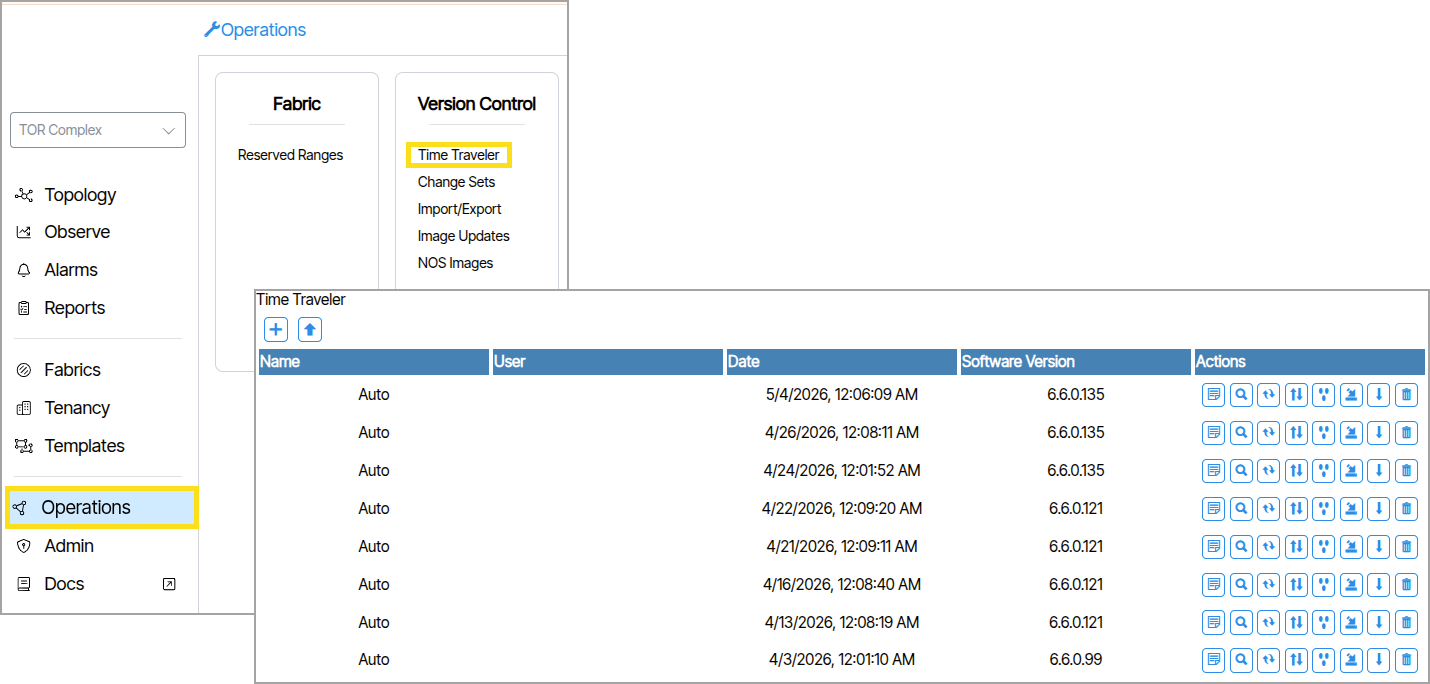
- Navigate to Operations/Time Traveler.
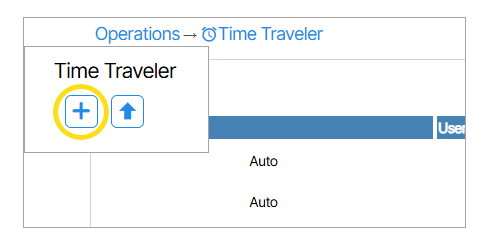
- Click the Create a New Network Time Traveler Backup button to create a new backup.
Revert State Using Time Traveler🔗
Disruptive Change
Restoring a backup replaces the current intended configuration, and Verity recalculates and pushes the resulting configuration to every affected switch. Before you restore, use Compare to Current and View affect Ports Since Backup to review what will change, and restore during a maintenance window.
- Navigate to Operations/Time Traveler.
- Determine the backup to revert to (Select by date).
- Click the corresponding Restore Network Time Traveler Backup icon. (
 )
Time Traveler Actions🔗
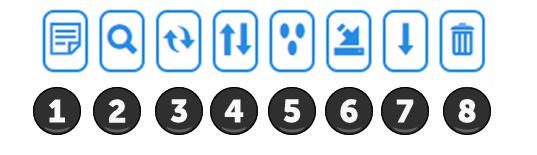
- Write and/or View Note of backup
- Compare to Current
- Compare to Previous Backup
- View Changed Provisioning Objects Since Backup
- View affect Ports Since Backup
- Restore Network Time Traveler Backup
- Download Network Time Traveler Backup
- Delete Network Time Traveler Backup
Automatic Time Traveler Backups🔗
Time Traveler backups are automatically created once a day if there is a change in the network detected. A maximum of 10 is retained by default and the oldest one is removed if a new one is made.